To answer how do you add friends on Minecraft, use Minecraft: Bedrock Edition’s Social menu: open a world, pause, select Social, choose Search for players, enter your friend’s Microsoft gamertag, and select Add. Java Edition does not use the same in-game friends list; play together through a Realm, server, or LAN world instead. ([help.minecraft.net](https://help.minecraft.net/hc/en-us/articles/32898740935181?utm_source=openai))
What you need before adding a friend
Before you send a friend request, make sure both players use Microsoft accounts and know the correct Microsoft gamertag. A gamertag is not always the same as a console username, display name, or email address. Ask your friend to share the exact gamertag shown in Minecraft’s Social menu.
- A Microsoft account signed in to Minecraft.
- Your friend’s exact Microsoft gamertag.
- The same Minecraft edition for multiplayer.
- Multiplayer permissions enabled for both accounts.
- An online subscription on consoles when the platform requires one.
Bedrock Edition supports cross-platform play between Windows, Xbox, Nintendo Switch, PlayStation, and mobile devices. Java Edition supports multiplayer with Java players on Windows, Mac, and Linux, but Java and Bedrock players cannot normally join each other’s worlds or servers. ([minecraft.net](https://www.minecraft.net/en-us/article/how-create-minecraft-account?utm_source=openai))
How do you add friends on Minecraft Bedrock
These steps work for Bedrock Edition on Windows PC, Xbox, PlayStation, Nintendo Switch, Android, iPhone, and other supported Bedrock devices.
- Launch Minecraft and sign in with your Microsoft account.
- Join an existing single-player world or Realm. You can also create a new world.
- Pause the game.
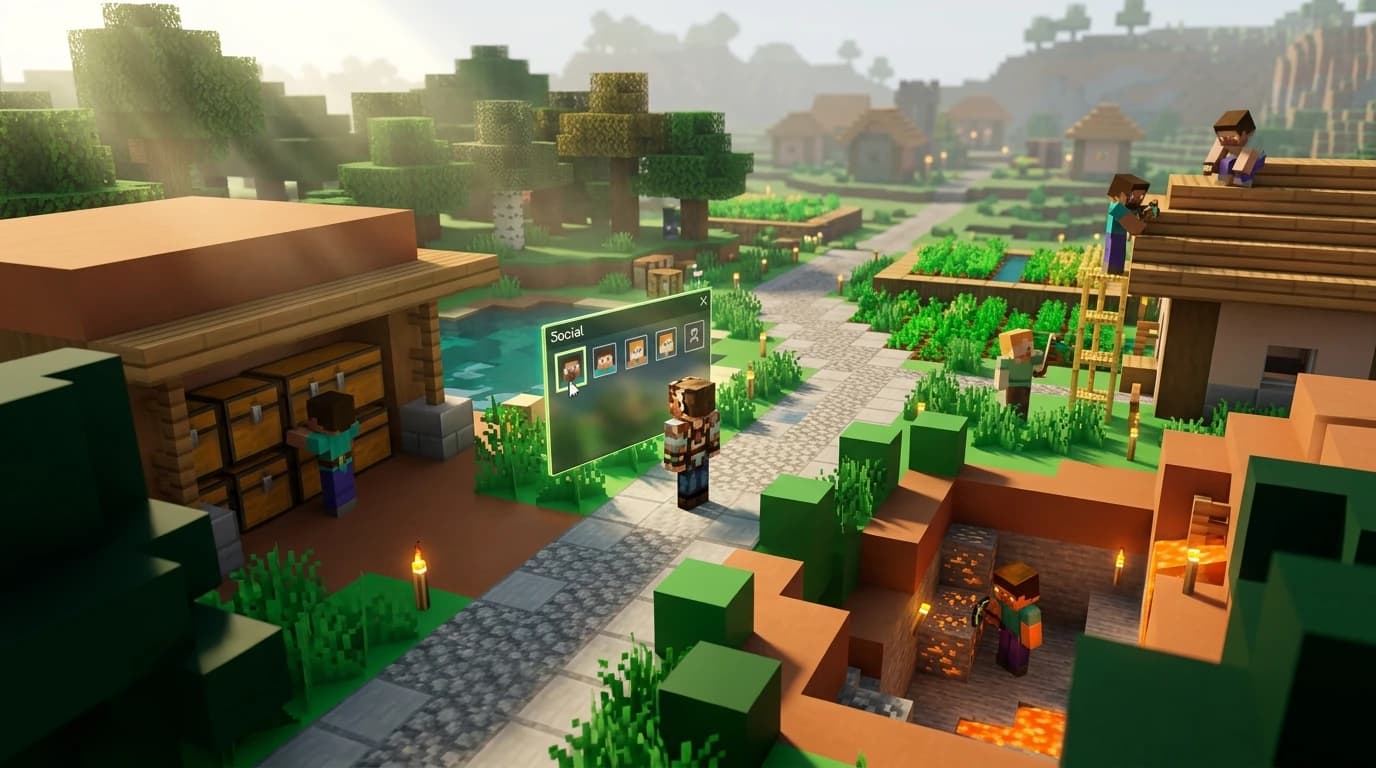
- Select the Social button in the top-right corner.
- Select Search for players.
- Enter your friend’s Microsoft gamertag in the search field.
- Find the correct player and select Add or Add friend.
Your friend may need to accept the request or add you back before you can easily see each other in the Friends list. If the correct player does not appear, check every letter, number, space, and symbol in the gamertag.
Share your own gamertag
If your friend cannot find you, open the Social menu and use Share, Copy Gamertag, or the QR-code option, depending on your platform. Sharing the gamertag directly avoids mistakes caused by similar names. ([help.minecraft.net](https://help.minecraft.net/hc/en-us/articles/32898740935181?utm_source=openai))
How to invite friends to your Minecraft world
Adding someone to your friends list does not automatically place them in your current world. You also need to enable multiplayer and send an invitation.
- Open Minecraft and select Play.
- On the Worlds tab, select the pencil icon beside your world.
- Select Multiplayer.
- Turn on Multiplayer Game.
- Choose whether the world allows friends or friends of friends.
- Start the world.
- Pause the game and open Social.
- Select Invite to Play.
- Choose your friend and select Send Invites.
Your friend receives the invitation through their platform’s game notifications. They can accept it and join while your world is open. If you want the world to remain available when you are offline, use a Realm instead of a normal hosted world. ([help.minecraft.net](https://help.minecraft.net/hc/en-us/articles/32899440702477-Invita-a-tus-amigos-a-tu-mundo-de-Minecraft-Bedrock-Edition?utm_source=openai))
How to add friends on Minecraft Switch
On Nintendo Switch, use the Bedrock friend system rather than relying only on the Nintendo Switch friend list.
- Open Minecraft on the Switch and sign in with a Microsoft account.
- Enter a world, then pause the game.
- Open the Social menu.
- Select Search for players.
- Enter your friend’s Microsoft gamertag.
- Select the matching player and choose Add friend.
A Microsoft account lets a Switch player play Minecraft with people on non-Nintendo devices. Online multiplayer on Nintendo Switch also requires Nintendo Switch Online, where applicable. ([help.minecraft.net](https://help.minecraft.net/hc/en-us/articles/32898740935181?utm_source=openai))
How to add friends on Minecraft mobile
Android and iPhone versions use Bedrock Edition, so the process is the same as on Switch and other Bedrock platforms.
- Open Minecraft on your phone or tablet.
- Sign in with your Microsoft account from the main menu.
- Join or create a world.
- Pause the game and tap Social.
- Tap Search for players.
- Type your friend’s Microsoft gamertag.
- Tap Add beside the correct account.
After the request is accepted, your friend should appear in the Friends section when you select Play. Both players need an internet connection, compatible versions, and multiplayer permissions enabled.
How to add friends on Minecraft Java
Java Edition does not have the same Bedrock-style in-game friend search and invite system. You generally play with friends through a Java Realm, a multiplayer server, or a LAN world.
Invite someone to a Java Realm
- Launch Java Edition and select Minecraft Realms.
- Select your Realm and choose Configure.
- Open the Players section.
- Select Invite Player.
- Enter your friend’s Java Profile Name.
- Select Invite Player.
Java Realms invitations use the player’s Java Profile Name, not the Bedrock Social menu. A Java Realm can have many invited members, but only a limited number can play simultaneously according to the Realm plan. ([help.minecraft.net](https://help.minecraft.net/hc/en-us/articles/25916625786509-How-to-Invite-Friends-to-Your-Minecraft-Java-Edition-Realm?utm_source=openai))
Use a Java server or LAN world
For a Java server, send your friend the server address and have them select Multiplayer, then Add Server. For a LAN game, open your single-player world, select Open to LAN, and have your friend connect from the Multiplayer screen on the same local network.
Java players on PC cannot normally join a Bedrock player’s world just because both accounts are Microsoft accounts. The two editions use different multiplayer networks. ([minecraft.net](https://www.minecraft.net/en-us/article/java-or-bedrock-edition?utm_source=openai))
Why can’t I add or find my friend?
Most friend-request problems come from an incorrect gamertag, an account privacy setting, or a mismatch between Java and Bedrock Edition.
- Wrong name: Ask your friend to copy their gamertag from Minecraft’s Social menu.
- Different editions: Confirm that both players use Java or both use Bedrock.
- Multiplayer disabled: Check the world’s Multiplayer settings and each account’s permissions.
- Child account restrictions: A parent may need to allow multiplayer, cross-network play, adding friends, and online communication.
- Outdated game: Update Minecraft on every device before trying again.
- Console subscription missing: Xbox, PlayStation, and Nintendo Switch may require their platform’s online service for online play.
- Blocked account: Check whether either player has blocked the other through Microsoft or the console platform.
For a child account, parental settings can control joining multiplayer games, cross-network play, adding friends, and online communication. After changing a setting, sign out of Minecraft, restart the game, and try the request again. ([help.minecraft.net](https://help.minecraft.net/hc/en-us/articles/32899440702477-Invita-a-tus-amigos-a-tu-mundo-de-Minecraft-Bedrock-Edition?utm_source=openai))
How to find friends to play Minecraft with
If you are asking how to get friends on Minecraft rather than how to add a specific person, start with people you already know, a moderated Realm, or a multiplayer community that matches your playstyle. Share your gamertag only with people you trust, and avoid giving strangers personal information.
- Invite classmates, relatives, or existing gaming friends to a shared world.
- Use a Realm when your group wants a persistent private world.
- Join a server with clear rules and active moderation.
- Use in-game chat responsibly and block or report abusive players.
- Agree on building, trading, and prank rules before starting a shared survival world.
For pranks, keep them reversible and get permission first. Moving a friend’s blocks, placing harmless signs, hiding items temporarily, or building a surprise structure is safer than destroying builds, trapping players permanently, or taking valuable gear.
Play together after adding your friends
Once your friends are on the correct list, start with a shared goal: build a base, explore a structure, make a trading hall, or progress through the Nether together. A clear goal gives everyone something useful to do and makes it easier to keep a new multiplayer world active.