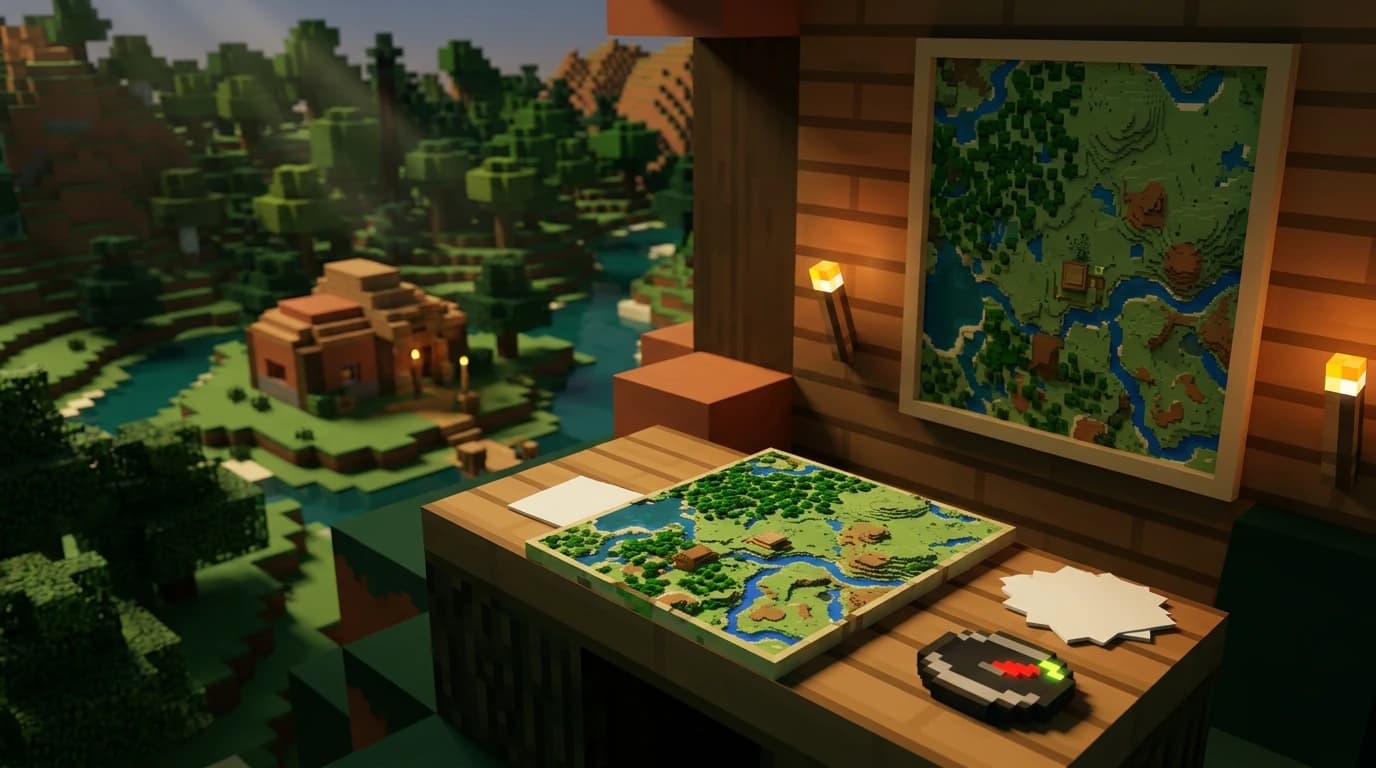
To learn how to make map on Minecraft, place 8 paper around 1 compass in a crafting table, then hold the empty map and use it to record nearby terrain. In Bedrock Edition, 9 paper creates a non-locator map, while 8 paper plus a compass creates a locator map with your position marker.
How to make a map in Minecraft
A map starts as an empty item. After you activate it, the map records the terrain around you as you explore. You need paper and, depending on your edition and whether you want a player marker, a compass.
Gather the materials
- 8 paper for the standard Java Edition recipe.
- 1 compass for a Java map or a Bedrock locator map.
- 1 crafting table to combine the ingredients.
Paper comes from sugar cane. A compass requires 4 iron ingots and 1 redstone dust, with the redstone in the center of the crafting grid and the iron in the four spaces directly above, below, left, and right of it.
Craft the map
- Open a crafting table.
- Place the compass in the center slot.
- Place one paper in each of the other eight slots.
- Take the empty map from the result slot.
The paper surrounds the compass on every side: top-left, top-center, top-right, middle-left, middle-right, bottom-left, bottom-center, and bottom-right. You now have an empty map that can show your location while you travel.
How to use an empty map
An empty map does not display terrain until you activate it. Put it in your hotbar, select it, and use the item. On PC, this is normally right-click. On a controller, use the item button. On touch controls, press and hold on the screen.
The map begins recording the area around your current position. Walk, boat, or ride through the region to fill in more of the map. The map updates as you move through terrain within its coverage area, but it does not automatically reveal distant locations that you have not visited.
- The small white marker shows your position when the map supports location markers.
- Colored areas represent different terrain and biomes.
- Buildings, paths, rivers, coastlines, and other large features become easier to recognize as you explore.
- The map stays centered on a fixed grid area rather than following you forever.
If you travel beyond the edge, your marker can move off the map. At that point, create or activate another map for the neighboring region.
How to make a map bigger in Minecraft
To make a map bigger, use a cartography table and combine the filled map with 1 paper. This zooms the map out by one level and shows a wider area with less detail. You can repeat the process up to four times, moving from scale level 0 to scale level 4.
Craft a cartography table
| Ingredient | Quantity |
|---|---|
| Paper | 2 |
| Wooden planks of any type | 4 |
In the crafting grid, place two paper across the top-left and top-middle slots. Put four wooden planks directly below them in a two-by-two arrangement: middle-left, middle-middle, bottom-left, and bottom-middle.
Zoom the map out
- Place the cartography table in the world and open it.
- Put your filled map in the first input slot.
- Put 1 paper in the second input slot.
- Take the expanded map from the result slot.
- Repeat the process if you need a wider view.
Each zoom level covers a larger square area. A level 0 map covers 128 by 128 blocks. The next levels cover 256 by 256, 512 by 512, 1,024 by 1,024, and finally 2,048 by 2,048 blocks. Zooming out cannot be reversed, so copy an important map before expanding it.
A cartography table uses only 1 paper per zoom level. The older crafting-table method, where you surrounded a map with 8 paper, uses much more paper and is not the practical choice when a cartography table is available.
How to copy, lock, and mark a map
Copy a map
To make a duplicate, place the filled map in one cartography-table slot and an empty map in the other. The result gives you two copies of the same map. This is useful when you want to give one map to another player or preserve an original before changing its scale.
Copied maps can share the same explored data while they remain connected to the same map record. If you zoom one copy out, treat it as a separate map afterward and update it independently.
Lock a map
To stop a map from changing, combine it with 1 glass pane in a cartography table. A locked map keeps the terrain data it had when you locked it, even if you later alter the world. This works well for permanent displays, base maps, and maps used as decoration.
Mark locations
In Java Edition, use a filled map on a placed banner to add that banner’s position as a marker. Name the banner first if you want the map marker to show a label. This makes it easier to mark a base, village, portal, mine entrance, or trading hall.
How to make a giant map in Minecraft
A giant map is usually a wall made from multiple map sections rather than one oversized item. One level 4 map covers a very large area, but it becomes difficult to read small structures. For a detailed map wall, use several maps at the same zoom level and place them in item frames next to one another.
- Choose the area you want your map wall to show.
- Create a separate starting map for each region you need to cover.
- Explore each region until its map is filled.
- Zoom every map to the same level.
- Place the maps in item frames in their matching north, south, east, and west positions.
Do not make several maps from the same starting position and expect them to cover different sections. Maps are tied to fixed areas of the world. To build a useful wall, move to a new region before activating each new map.
For a base overview, level 3 or level 4 maps are convenient. For detailed roads, farms, villages, and redstone builds, use a lower zoom level and combine more map sections.
How to make map art in Minecraft
Map art uses blocks and terrain to create a picture that appears when the area is viewed from above on a map. The map converts the top visible blocks in each area into colors, so your design must be built inside the map’s coverage area.
- Choose the map scale that matches the size of your design.
- Prepare a flat area with a clear background.
- Build the picture using blocks with different map colors.
- Activate a map while standing over the design.
- Adjust the blocks and refresh the map until the image looks correct.
At lower zoom levels, each map pixel represents fewer blocks, which gives you more detail. Higher zoom levels let you create larger pictures but reduce the number of visible color changes. Wool, concrete, terracotta, wood, and other solid blocks can produce different colors, but the final result depends on the block, height, biome, and map scale.
Java Edition and Bedrock Edition map differences
The main difference is the empty-map recipe and the name used for maps with position markers.
- Java Edition: 8 paper around 1 compass creates an empty map that shows your position after activation.
- Bedrock Edition: 9 paper creates an empty map without a position marker. Eight paper around 1 compass creates an empty locator map with a marker.
- Both editions: A cartography table uses a filled map plus paper to zoom out, a filled map plus an empty map to copy, and a filled map plus a glass pane to lock.
If you play Bedrock and only need terrain information, use the 9-paper recipe. If you want to see your own position while traveling, use the compass recipe instead.
Common map mistakes and faster alternatives
- The map looks blank: Activate it by holding the item and using it. An empty map does not record terrain until you do this.
- The map will not get bigger: Use a filled map, not an empty map, in the cartography table. Add paper as the second ingredient.
- You used an empty map when copying: Empty maps copy a filled map, but paper expands its scale. These ingredients have different jobs.
- You cannot find your base: Make a locator map, mark the base with a banner in Java Edition, or keep a copy at home before traveling.
- The map wall does not line up: Use maps from the same zoom level and activate each new map in the region it is meant to cover.
For routine exploration, carry several empty maps, extra paper, and a compass. For a permanent display, copy the finished maps, lock the copies, and place them in item frames so future construction does not change the artwork.